In the left menu, go to Maintenance → DVIR.
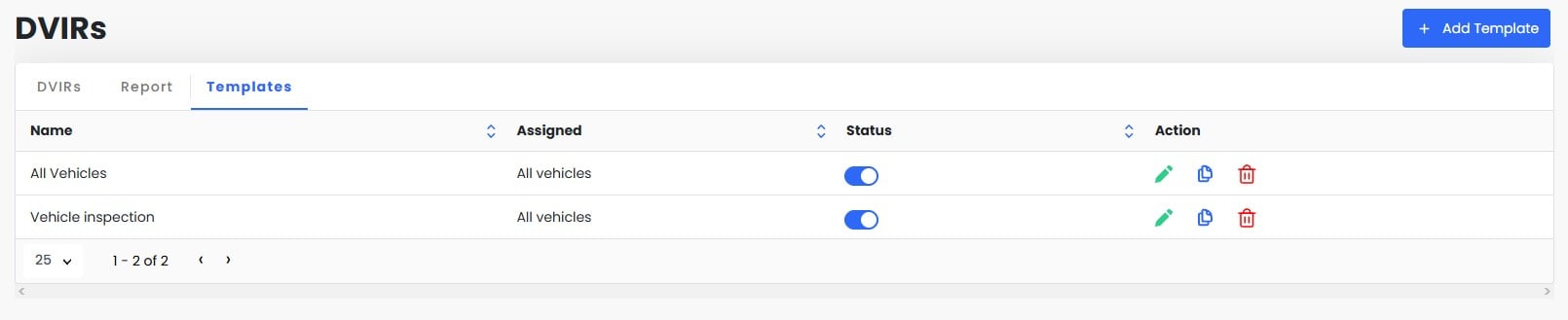
Select the Templates tab. Existing templates are listed with who they're assigned to and their status.
Use the Status toggle to turn a template on or off.
In the Action column, the pencil icon edits a template, the copy icon duplicates it, and the trash icon deletes it.
Click + Add Template in the top right.
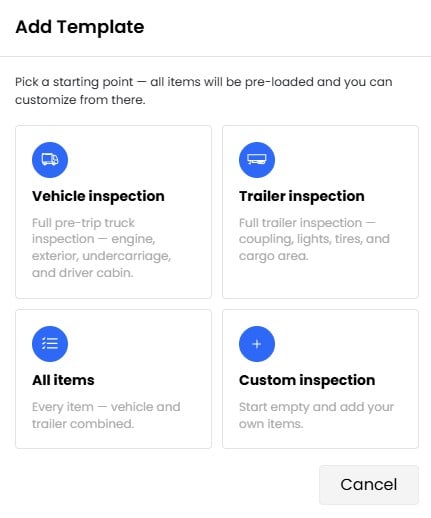
Choose one of the four options. All matching items are pre-loaded, and you can customize them afterwards.
Vehicle inspection: a full pre-trip truck inspection covering the engine, exterior, undercarriage and driver cabin.
Trailer inspection: coupling, lights, tires and cargo area.
All items: every vehicle and trailer item combined.
Custom inspection: starts empty so you can add your own items.
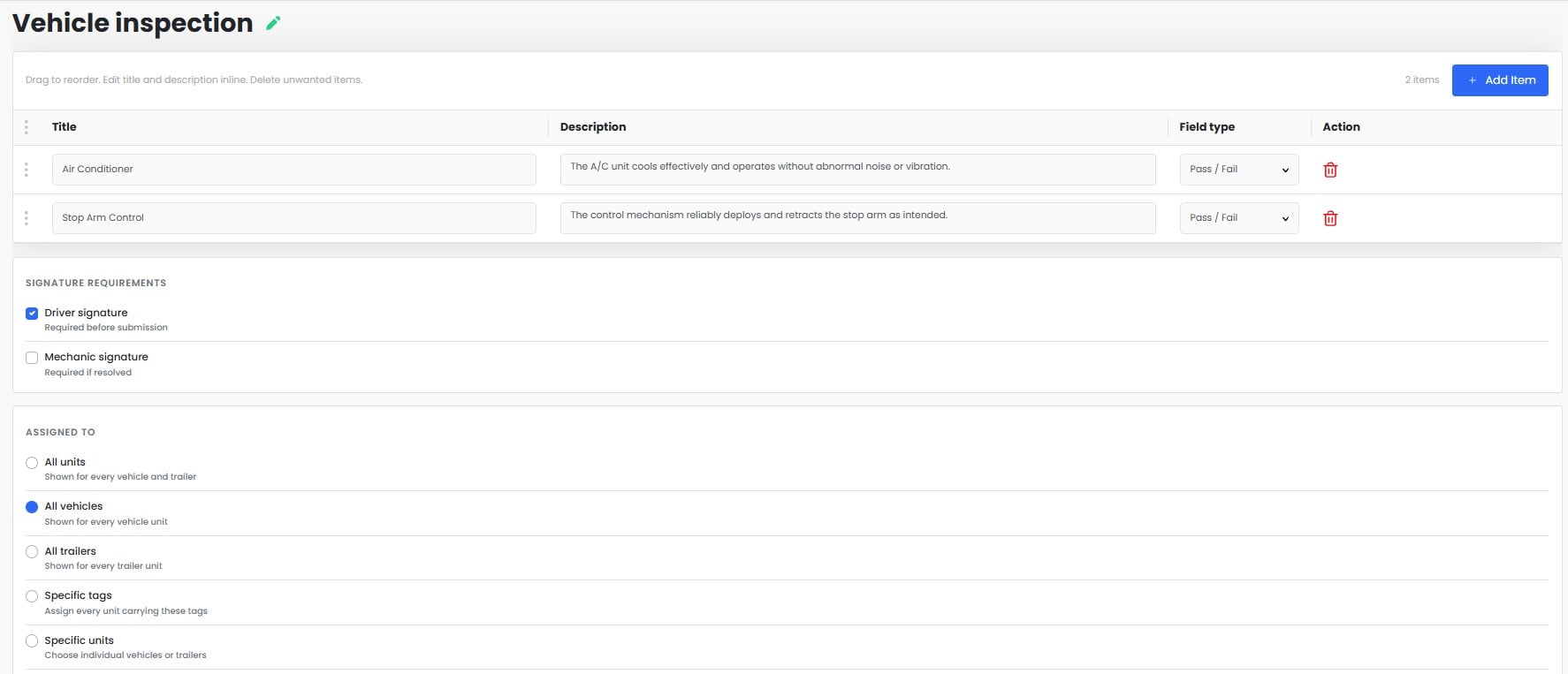
Customize items, signatures and assignment
Inspection items. Each row is one check the driver will do.
Edit the item name in the left field.
Edit the description in the middle field. This explains what a passing result looks like.
Choose the answer type from the dropdown, for example Pass / Fail. Items can also be set to require a photo, and drivers can't move past a photo-required item without one.
Drag the dotted handle on the left to reorder items.
Click the red trash icon to remove an item.
Signature requirements.
Driver signature: required before the driver can submit.
Mechanic signature: required when a defect is resolved.
Assigned to. Choose which units see this template:
All units: every vehicle and trailer.
All vehicles: every vehicle unit.
All trailers: every trailer unit.
Specific tags: every unit carrying the tags you select.
Specific units: individual vehicles or trailers you pick.
Save the template when you're done.
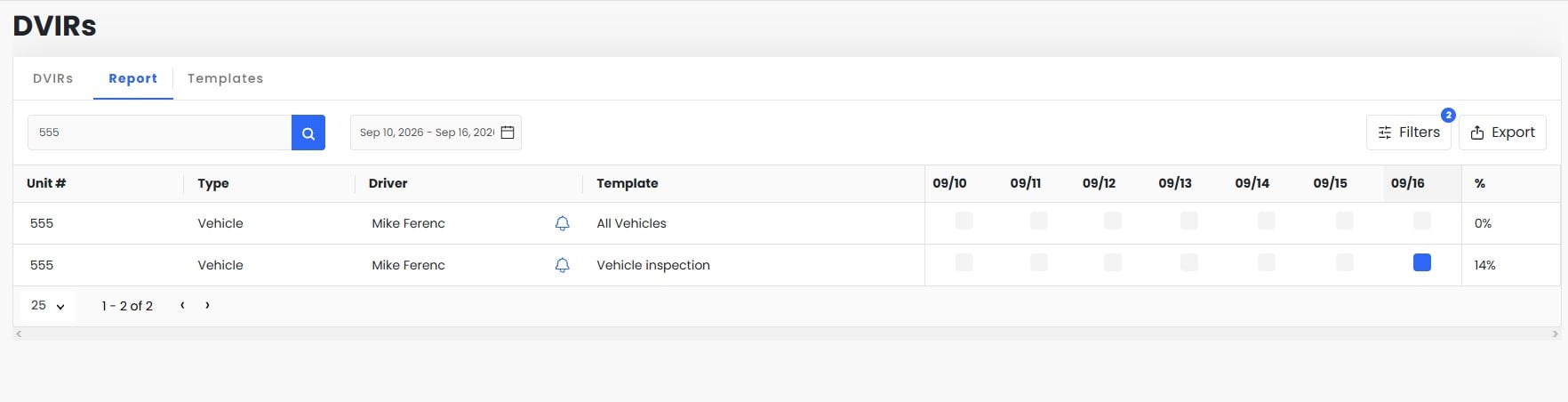
The Report tab shows, day by day, whether each unit was inspected with each assigned template.
Search by unit number, and set the date range with the calendar field.
Use Filters to narrow the list, and Export to download it.
Each row shows the unit number, type, driver and template.
In each date column, a filled blue square means an inspection was completed that day. An empty square means it wasn't.
The % column is the unit's inspection rate for the selected period. For example, one inspection over a 7-day range shows 14%.
You can send a reminder to a driver using a Blue Bell icon for him to complete his DVIR
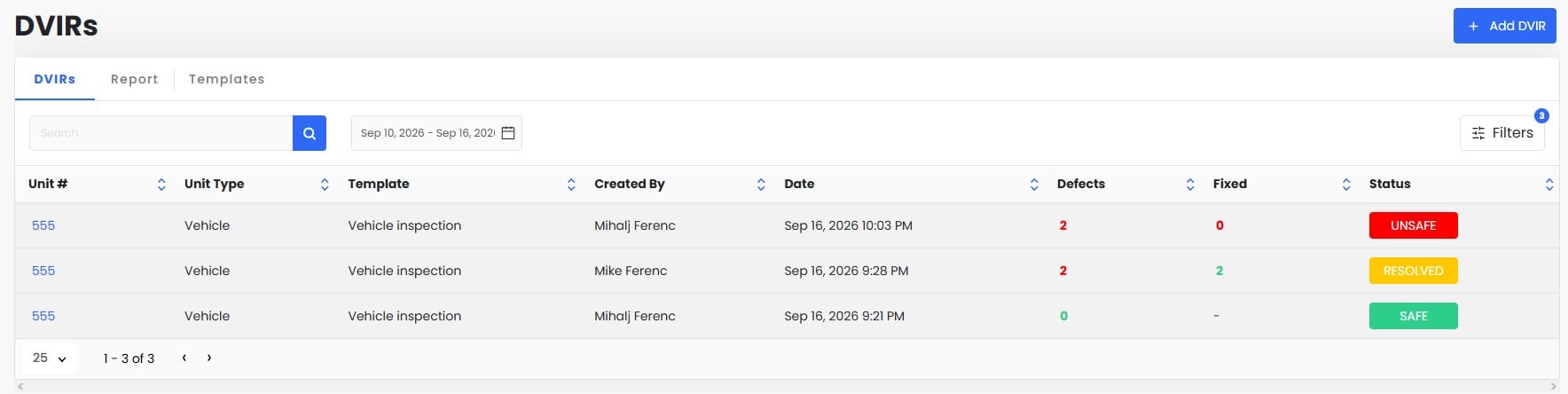
Search, pick a date range, or use Filters to find specific reports.
Each row shows the unit number, unit type, template, who created it, and the date and time.
Defects is the number of failed items, and Fixed is how many of those have been resolved.
Status shows SAFE (green), RESOLVED (yellow) and UNSAFE (red).
Click the blue unit number to open the report. There you can resolve defects and download a PDF.
To start a new inspection, click + Add DVIR in the top right.
Drivers complete inspections in the driver app. Admins can use the same flow through + Add DVIR.
Choose the unit and template
In Add DVIR, select the Unit #.
Choose a Template. Only templates assigned to that unit appear in the list.
Go through each item
Items are shown in order, and your progress appears in the top right (for example, "0 of 2 completed").
Mark each item Pass or Fail to move to the next one.
If an item requires a photo, you must add one before you can continue.
If you leave before finishing, the inspection is saved as a draft so you can resume it later.
Add details, status and signature
Under Inspection Details, enter the Odometer reading and Location.
Under Status, select Safe or Unsafe.
Sign in the Driver Signature box if the template requires it.
Submit the inspection.
Settings→ Other settings→ Models→Maintenance on
Settings→ Driver app→DVIR→Allow
If you want to get notified when drivers submit a DVIR with defects or marked unsafe go to
Settings→Notifications→DVIR→ Enable
