Go to Safety → Citations.
Click + Add Citation in the top-right corner.
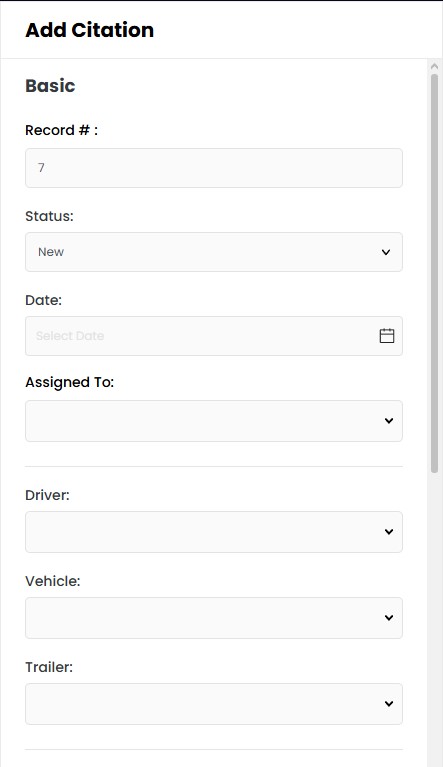
Enter the following details:
Record # – Automatically generated citation record number.
Status – Select the current citation status (e.g., New, Open, Closed, Urgent).
Date – Select the citation date.
Assigned To – Select the user responsible for managing the citation.
Driver – Select the driver who received the citation.
Vehicle – Select the vehicle involved (if applicable).
Trailer – Select the trailer involved (if applicable).
Division – Select the applicable division.
Complete any additional citation details that may be available further down the form (if applicable).
Click Save to store the citation, or Save & Open to save and immediately view the citation details.
Upload Document or/and add a Note on the citation.
Navigate to Safety → Citations to view all citation records.
The Citations page allows you to:
Search for citations using the search bar.
Filter records using the Filters button.
Customize visible columns using the Columns button.
View citation information, including:
Record #
Citation Date
Driver
Vehicle
Trailer
Citation #
Description
State
Assigned To
Status
Sort records by clicking the column headers.
Open an existing citation by selecting its record number.
Use pagination controls at the bottom of the page to navigate through records.
Citation records display their current status in the Status column, allowing users to quickly track and manage citations throughout their lifecycle.

Deleting a Citation
To delete Citation, open Citation and navigate to three dot menu in the top right and delete.
