From the left sidebar, click Settings.
This will open settings page.
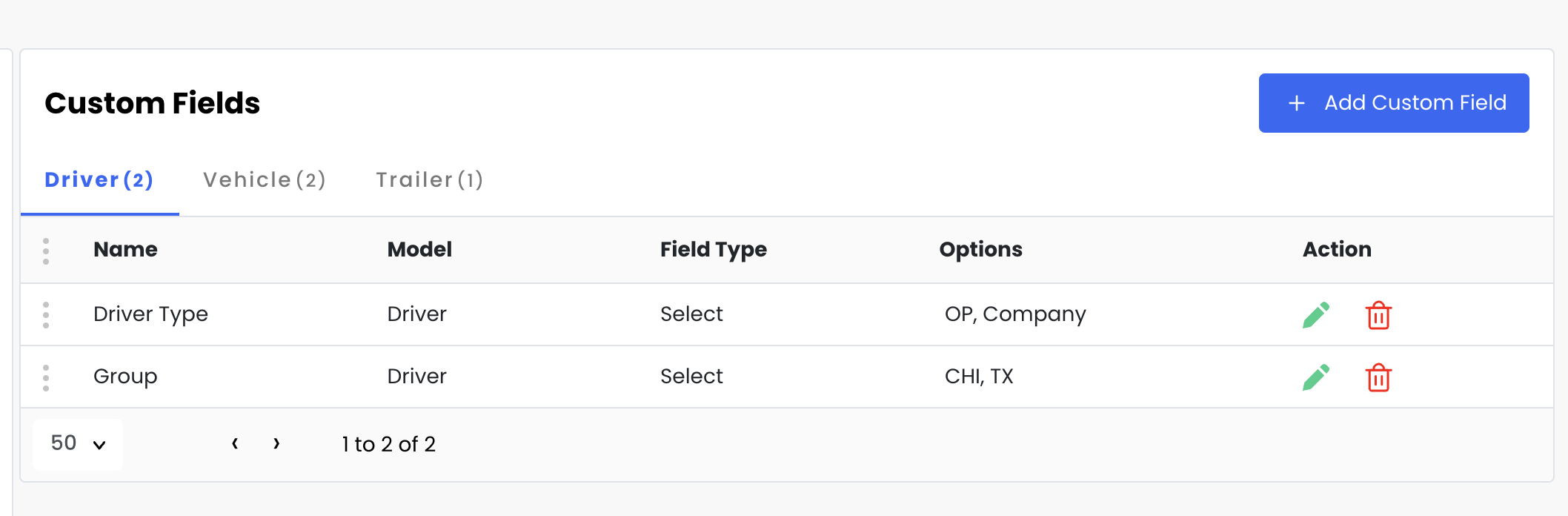
In the left menu, select Custom Fields.
You will see three available tabs:
Driver
Vehicle
Trailer
Choose the tab where you want to add a custom field.
Click the + Add Custom Field button to open the Add Custom Field window.
In the Add Custom Field window, complete the following fields:
Name – Enter the name of the custom field.
Model – Select the model the field belongs to:
Driver
Vehicle
Trailer
Field Type – Choose the type of field:
Text
Number
Select
Multi Select
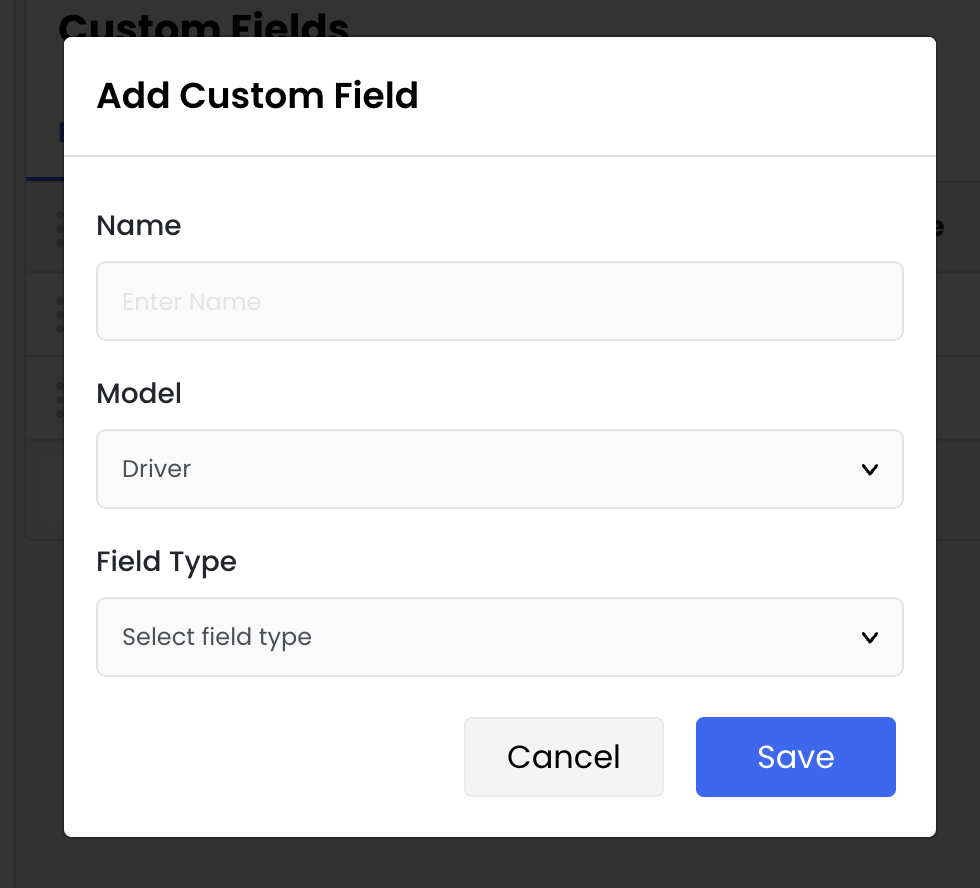
After entering the details, save the custom field.
The new field will appear in the list under the selected tab.
You can also:
Edit a field using the edit icon
Delete a field using the delete icon under the Action column
You can view custom fields directly within the driver profile or by applying filters in the selected category (Driver, Truck, or Trailer).
To update multiple driver custom fields at once, you can export the data as a CSV file, make the necessary changes, and then re-import the updated file back into the system.
