Adding Task
Go to Tasks
Click Add Task Button (Top Right Corner)
Here you can add Due Date for the Task, assign it to active personnel, chose a Model and Records
Click Save
Choosing Model and Records Option
Click Model
Choose from a drop down menu to which particular branch your task needs to refer
From Records option click “All” If Task is required to be completed by all from the chosen Model or click “Select” if task is meant for the specific person or equipment from model
You can add Tags which you previously placed already in DBP and place a task for that particular group or choose manually by clicking on “Records” drop menu and searching specifically for a person or a piece of equipment.
Managing Tasks
Go to Tasks
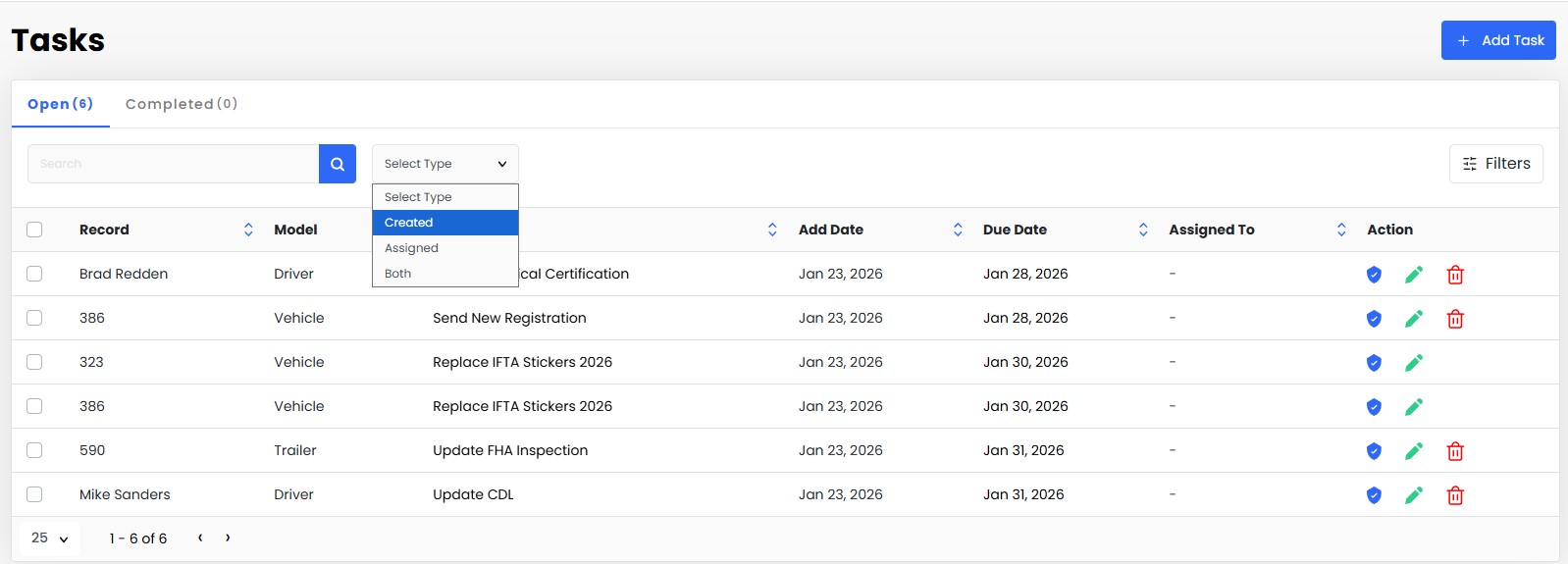
Browse through Tasks or use Filter options or Search tab to find specific Tasks
On the left side there are Complete (Blue Shield), Edit (Green Pencil) and Delete (Red Bin) options to manage your Tasks
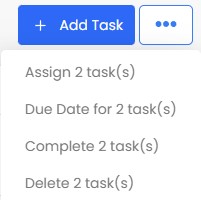
If you need to manage your Tasks in Bulk, Select Tasks by marking them individually and click on Three Dot Button (Top right Corner) and preform a needed function (Assign, Complete, Delete)