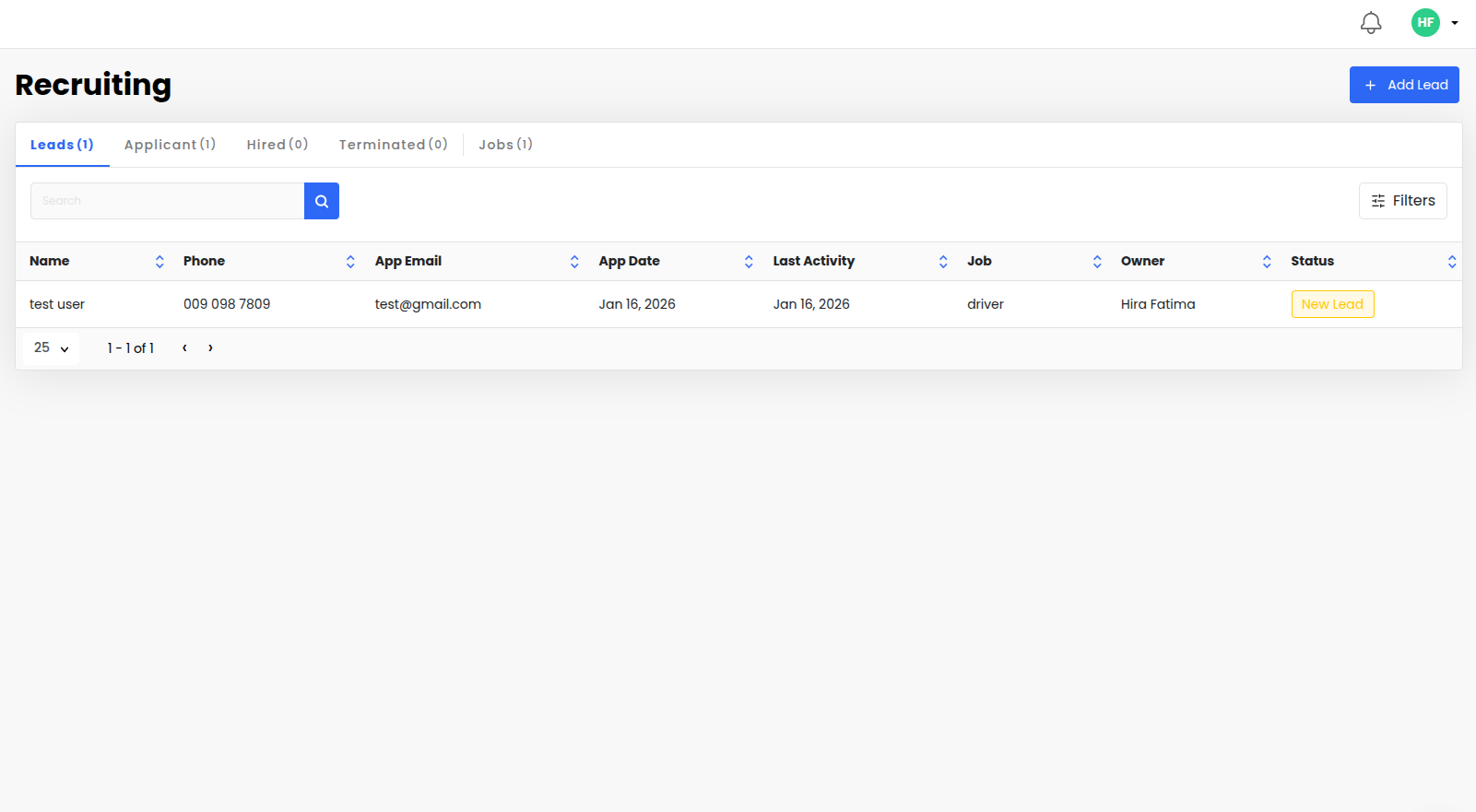
Go to Recruiting to manage all hiring leads and applicants.
• Use the tabs at the top to switch between:
– Leads
– Applicants
– Hired
– Terminated
– Jobs
• Use the Search bar to quickly find leads.
• Use Filters to narrow results based on available criteria.
• The table displays lead details
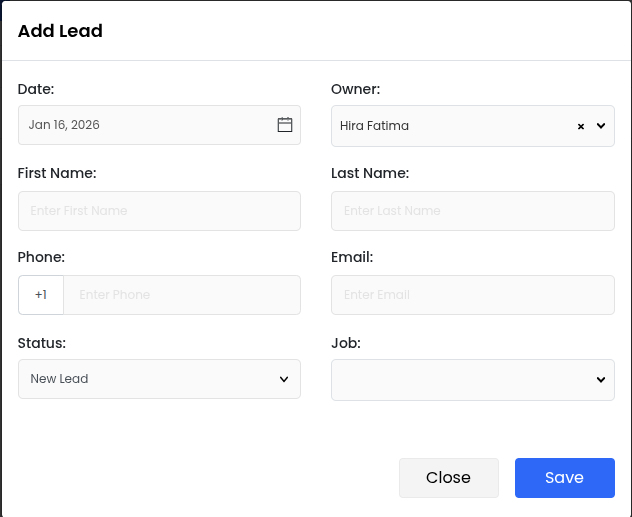
To add a new recruiting lead:
Click the Add Lead button in the top-right corner.
Select the Date (default is today).
Choose the Owner responsible for the lead.
Enter the First Name and Last Name.
Enter the Phone number and Email address.
Select the Status (default is New Lead).
Choose the Job, if applicable.
Click Save to create the lead or Close to cancel.
• Newly added leads will appear under the Leads tab.
• Leads can later be moved through Applicant, Hired, or Terminated stages.
• Owners help track responsibility for follow-ups and communication.
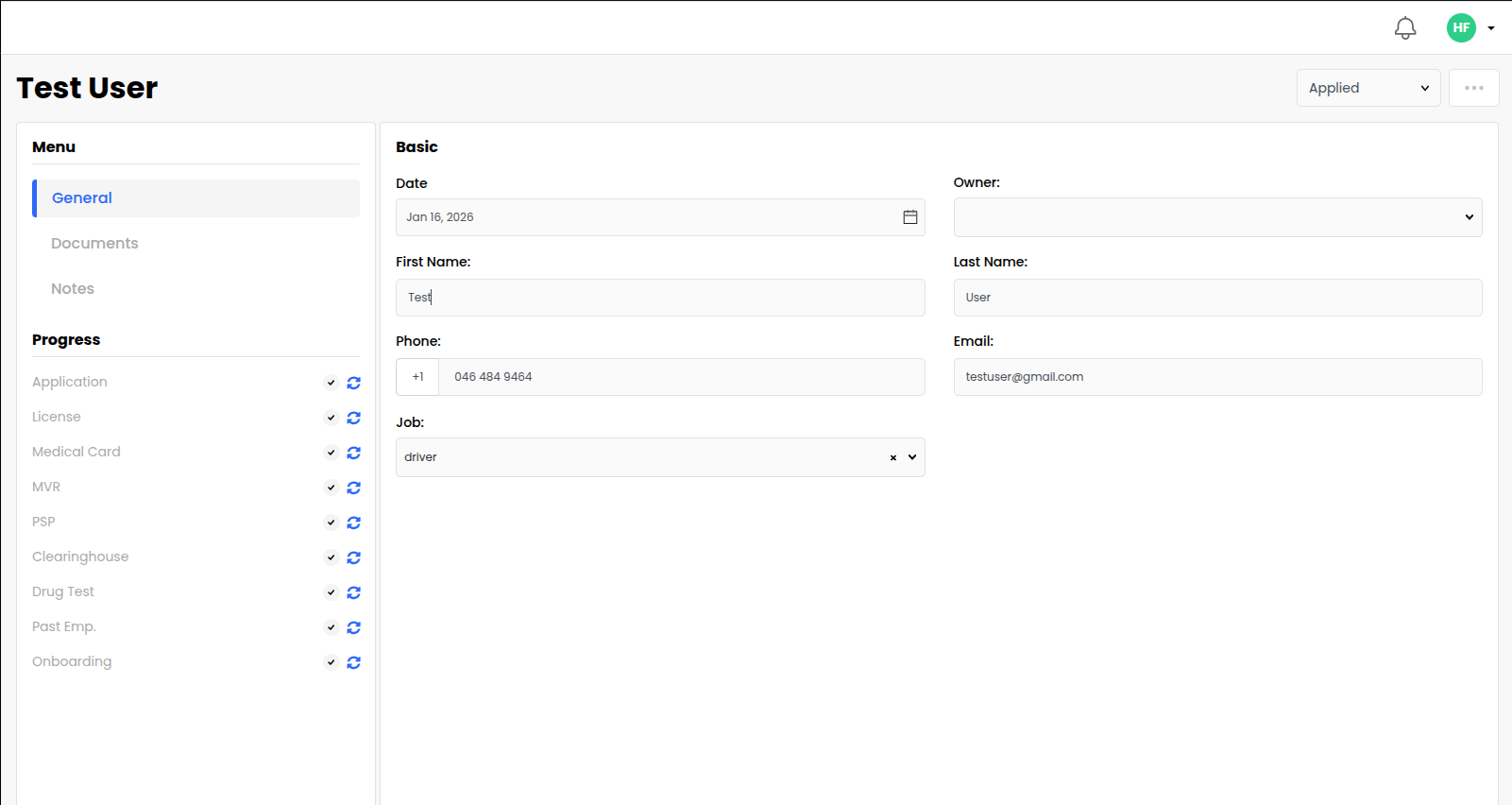
This screen allows you to view and manage an individual recruiting lead.
Basic Information
• Date shows when the lead was created.
• Owner indicates who is responsible for managing the lead.
• First Name and Last Name store the candidate’s name.
• Phone and Email contain the lead’s contact information.
• Job shows the position the lead is associated with.
All changes are saved automatically when updated.
Lead Status
• Use the Status dropdown in the top-right corner to update the lead’s current stage.
• Available statuses include:
– New Lead
– Contacted
– In Progress
– Lead Closed
– Applied
– Under Review
– Screening
– Rejected
Updating the status helps track progress through the hiring pipeline.
Menu Options
• General – View and edit basic lead information.
• Documents – Upload and manage documents related to the lead.
• Notes – Add internal notes and comments for tracking communication.
Progress Tracking
The Progress section shows required hiring steps and their completion status:
• Application
• License
• Medical Card
• MVR
• PSP
• Clearinghouse
• Drug Test
• Past Employment
• Onboarding
Icons indicate whether each step is completed, pending, or needs attention.
Quick Actions
• Use the three-dot menu in the top-right corner for additional actions related to the lead.
• Status changes can be made at any time as the candidate moves through the process.
