Go to Settings
Choose settings that best fit your operation.
Press Save.
Make sure your Company ID is something that works for you, and remember all drivers will need to use CompID to login into mobile app.
Lock Vehicle
Set to ON if you would like drivers to be locked from company wide vehicles, and only be able to access one assigned to them.
Lock Trailer
Set to ON if you would like drivers to be locked from company wide trailers, and only be able to access one assigned to them.
Allow Driver, Vehicle, Trailer Docs
As default this is OFF and drivers can not add documents direct to their profile, or default vehicle or trailer. If you would like drivers to add documents direct set this to ON. Also remember all documents sent by drivers will go to Documents / Review tab, and you will need to Review, Approve them or Reject them back to driver to re-do.
File Drop
Set to ON if you would like drivers to drop random documents to the portal, and those will be found in the Documents / File Drop tab. This are not attached to any specific profile.
DOT Mode
Set to ON if you would like drivers to have option to use DOT Mode int he driver App. This will allow company to hide some company documents from DOT Mode, and also will allow company to get Notification once drivers Starts or Stops DOT Mode. Also will allow driver to Scan DOT Inspection Document once its complete.
Contacts
Set to ON if you would like drivers to access all company contacts, from Company Contacts table.
Hide Trailer
Set to ON if you would like to hide trailers from Driver Mobile App, this is only if you do not use trailers, and don't need them.
Maintenance
Set on if you would like to use Maintenance model.
Safety
Set on if you would like to use Safety model.
DOC TYPES
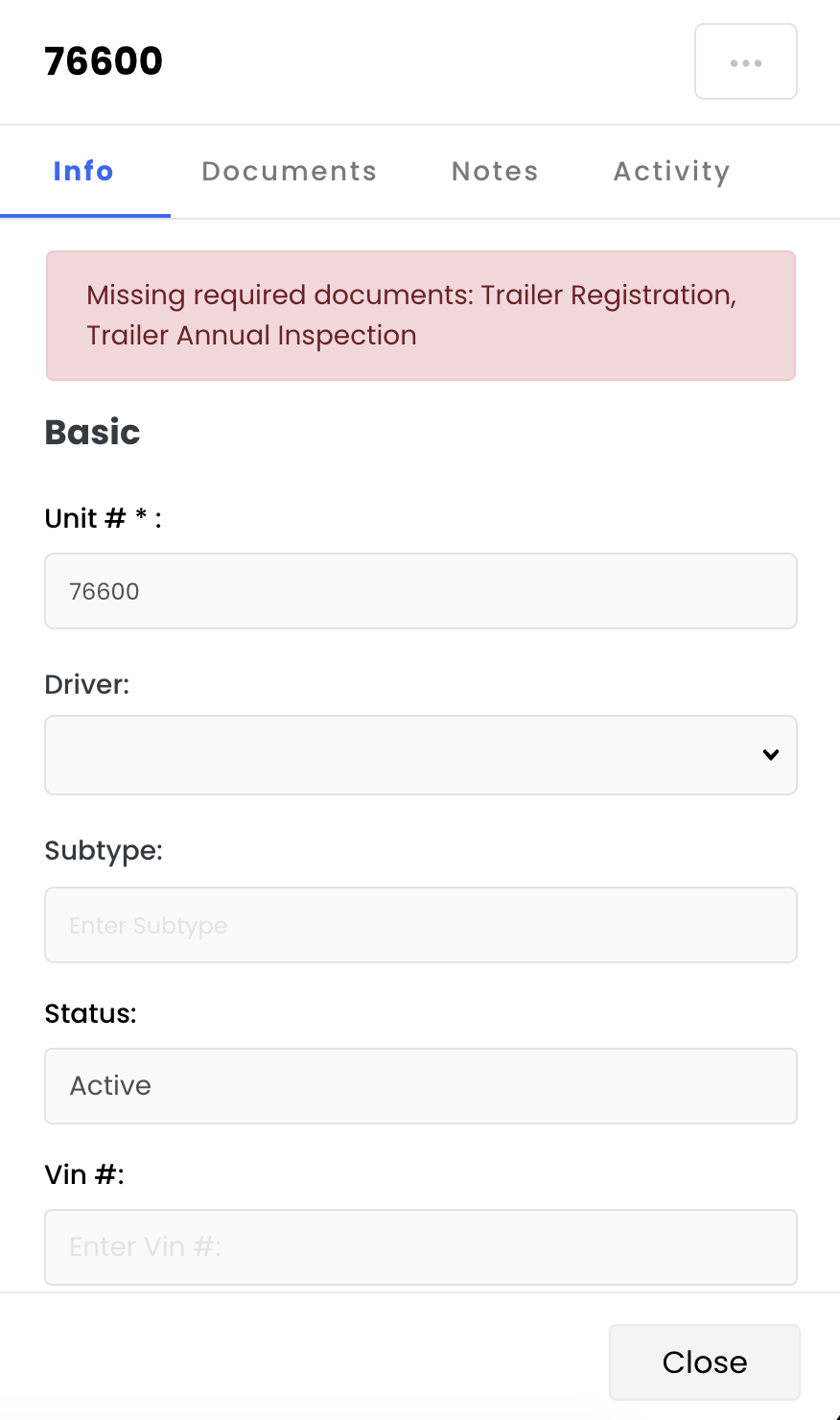
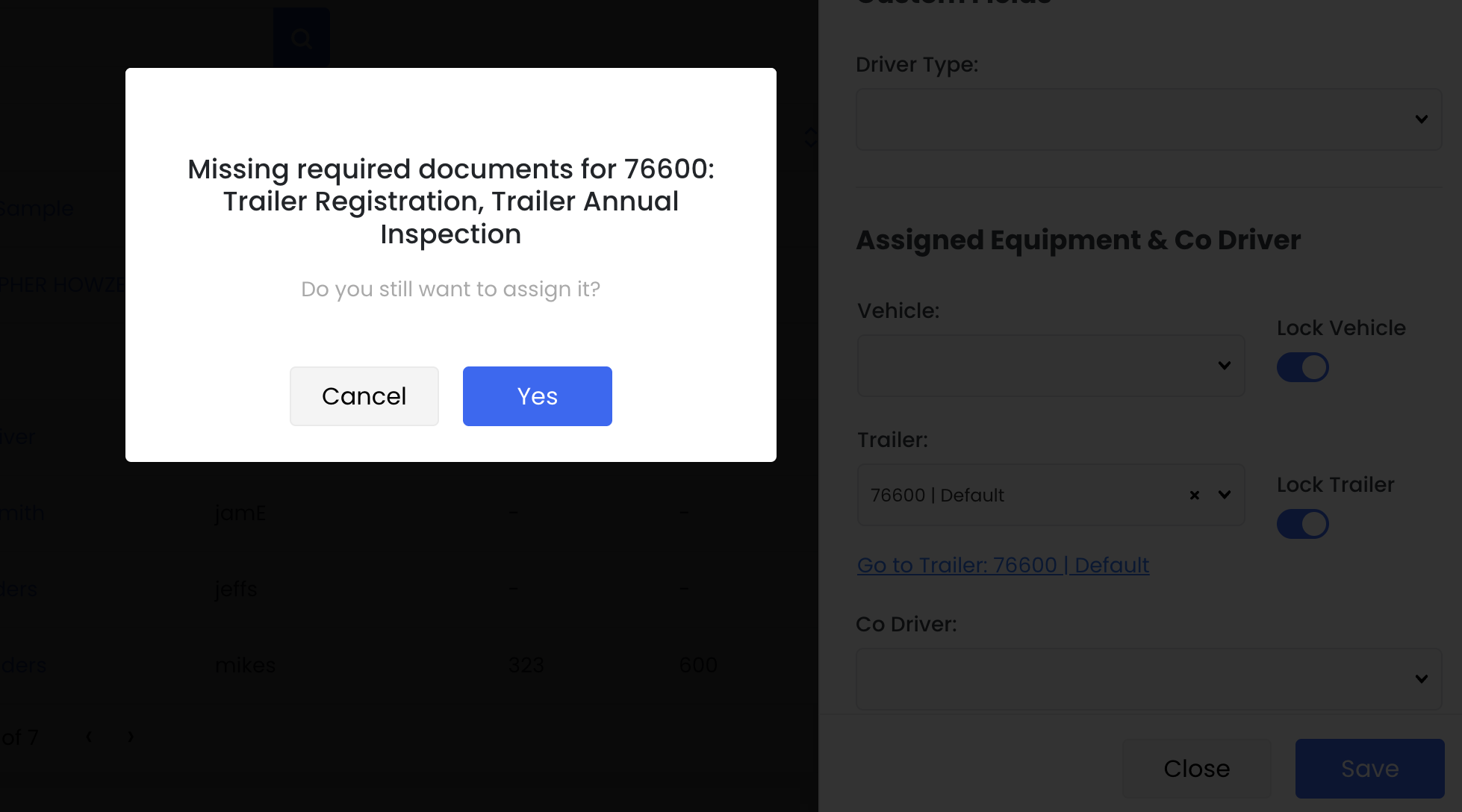
We prefer to set Doc Type Required to ON, its a good way to stay organized.
When this setting is ON, when you proceed with assigning Driver (Driver documents included) to Truck or Trailer, you will get a prompt that notifies you that the specific document is missing and if you want to proceed with assigning the equipment without all necessary paperwork to the Driver.
Division
This is only used if you are running multiple divisions, and would like to separate drivers to separate divisions to see different company documents.
AI CREDITS
The AI Credits page allows administrators to monitor their organization's available AI credits and review how they are being used. AI credits are consumed whenever AI-powered features, such as Auto-extract DOT Inspection, Maintenance receipts process uploaded documents.
Go to Settings.
Select AI Credits from the left navigation menu in General Settings.
Here you will see your allocated AI credits, each company starts with a 100 and you will be able to see the usage history from your AI credits portal. If you need to add more to your account you will need to contact support.
